
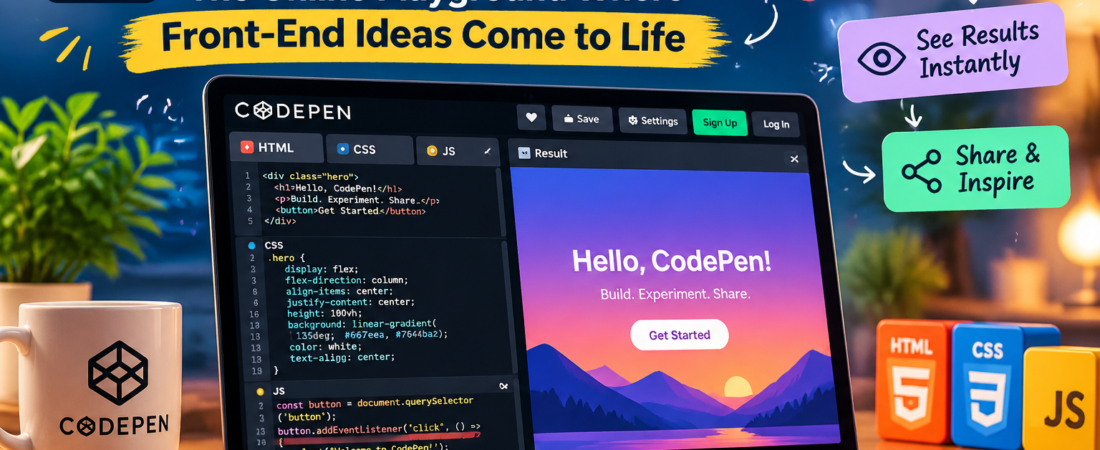
Every web developer remembers the friction of starting a new idea. You create a folder, make three files, link them together, open a browser, refresh, and only then see whether a small CSS trick actually works. CodePen was built to remove that friction. It is a browser-based playground where you can write HTML, CSS and JavaScript and see the result update right next to your code. Over the years it has grown from a handy sketchpad into a global community where designers and developers share experiments, learn from each other and build portfolios. This guide explains what CodePen is, how it works, who it suits, what the free and paid plans offer, and how to use it well.
What Is CodePen?
CodePen is an online code editor and social development environment focused on front-end web technologies. Instead of installing software on your computer, you open the site in a browser, type code into three panels for HTML, CSS and JavaScript, and watch a live preview respond as you work. Each creation is called a Pen, and every Pen has its own shareable link.
The simplicity is the whole appeal. A Pen can be as small as a single animated button or as ambitious as a full interactive layout, and anyone with the link can view the code, fork it into their own copy and experiment. That ability to see how something was built, and to change it instantly, is why CodePen is often described as a learning tool as much as a coding tool.
Pens, Collections and Profiles
Beyond individual Pens, the platform lets you group related work into Collections, which function like folders or playlists. Your public profile then acts as a lightweight portfolio, displaying your latest work, the Pens you have marked as favorites and the people you follow. For junior developers and designers, this profile often doubles as a first public body of work.
How CodePen Works
The editor is built around the idea of immediate feedback. When you type in the HTML panel, add styling in the CSS panel and write behavior in the JavaScript panel, the preview refreshes automatically. You do not need to save, reload or switch windows to see the effect of a change.
Preprocessors and Libraries
You are not limited to plain HTML, CSS and JavaScript. CodePen supports preprocessors, which are languages that compile into the standard ones. Developers can write styles with tools like Sass or markup with templating languages and let the platform convert them behind the scenes. You can also add external libraries and frameworks through the settings panel, so a Pen can use popular tools without any manual downloading.
Embedding Pens on Other Websites
One of the most useful features is embedding. According to CodePen’s own documentation, the Pens you build can be displayed on any other site, bringing the editor and preview into a compact box. Tutorial writers, documentation authors and bloggers use embeds so readers can see working code beside the explanation and even edit it live. This turns a static article into an interactive lesson.
Key Features That Make CodePen Popular
Several features explain why this platform has stayed relevant in a crowded field of online editors.
Instant Live Preview
The real-time preview shortens the learning loop. Beginners can tweak a single value and immediately see how a layout changes, which builds intuition faster than reading about it.
A Searchable Community Library
Because most work on the platform is public by default, millions of Pens form an enormous library of examples. If you want to understand how a card hover effect, a loading animation or a grid layout works, you can search for it, open the code and study the technique. Many working developers use the site as a source of inspiration and a place to reverse-engineer ideas.
Easy Sharing and Collaboration
Every Pen has a link, so sharing a bug or an idea takes seconds. Developers often post a minimal example on CodePen when asking for help, because a reduced test case that others can run and edit is far easier to debug than a screenshot or a pasted snippet. Paid plans also add collaboration features for working on the same Pen with others.
Challenges and Community Events
The platform has a long tradition of community challenges that invite members to build something around a theme. These events encourage creative practice, give newer developers a reason to publish work and help them get noticed by the wider community.
Who Should Use CodePen?
The platform serves a wide range of people, and the common thread is a desire to build and share front-end work quickly.
Beginners and Students
Anyone learning web development benefits from a setup that needs no installation. Students can follow a course, try each example in the editor and keep a record of their progress. Because mistakes are cheap and visible, it is a forgiving environment for experimentation.
Professional Developers and Designers
Experienced developers use CodePen for rapid prototyping, testing browser behavior and documenting a technique before adding it to a larger project. Designers who write code use it to bring motion and interaction ideas to life without setting up a build system.
Educators and Content Creators
Teachers can prepare live examples for lessons, and technical writers can add interactive demos to articles. The embed feature makes it particularly good for tutorials that need readers to see code and output together.
CodePen Free Plan Versus PRO
The free plan is generous for learning and public sharing. CodePen’s pricing information states that you can create an unlimited number of Pens and Collections, and that by default these are public. That alone covers most hobby and learning needs.
The paid PRO plan adds features aimed at more serious or professional workflows. According to the platform’s documentation, PRO members can create private Pens and Collections that are hidden from their profile and from search on the site, visible only to the owner and anyone given the private link. PRO accounts also include asset hosting, which lets you upload files directly to CodePen and use them in your Pens. Third-party plan comparisons additionally mention deployment of Pens as standalone sites, collaboration tools and an ad-free experience as paid benefits.
Teams can also subscribe, and the platform bills them by the number of PRO seats. Larger organizations can arrange enterprise agreements, though CodePen states that it does not offer a self-hosted version of the product.
A Note on Pricing
Prices and plan tiers have changed over time, and different review sites list different figures. Rather than relying on a number in a third-party article, check the official pricing page before you subscribe. It is also worth reading what happens to private content and deployed projects if you later cancel, since a canceled PRO plan returns your account to the free tier.
Practical Ways to Use CodePen Well
Getting value from the platform is mostly about habits. Start small and focus each Pen on one idea, such as a single animation or layout, because focused work is easier to understand and share. Give every Pen a clear title and description so it can be found in search and so future you remembers what it demonstrates.
Study other people’s work actively. Fork a Pen, change something and see what breaks, rather than only reading the code. When you ask for help, reduce your problem to the smallest example that still shows the issue, which makes it far easier for others to assist. Finally, keep your better Pens organized into Collections so your profile tells a coherent story to anyone reviewing it, including potential employers or clients.
Limitations to Keep in Mind
CodePen is excellent for front-end experiments, but it is not a full development environment. It is not designed to manage a large multi-file application with a back end, database or complex build pipeline. For a production website, developers typically move their finished code into a proper project and a hosting service.
Another consideration is privacy. Because free work is public, you should avoid pasting private API keys, client code under confidentiality or any sensitive data into a public Pen. If you need confidential drafts, a paid plan with private Pens or a local development setup is the safer route.
Alternatives Worth Knowing About
Several other online editors cover similar ground. JSFiddle is known for quick, lightweight tests, while CodeSandbox and similar tools lean toward framework-based projects with more complex file structures. Each has a different balance of simplicity, power and community. CodePen’s particular strength lies in its social and showcase side, with a large community, strong embedding and a focus on visual front-end work.
Conclusion
CodePen is a browser-based playground that makes writing, previewing and sharing front-end code fast and approachable. Its live preview, embeddable Pens, community library and simple sharing make it valuable for beginners, working developers, designers and educators alike. The free plan covers unlimited public Pens, while PRO adds privacy, asset hosting and other professional features. It is best understood as a place to experiment, learn and showcase ideas, rather than a substitute for a complete development environment. If you build for the web, a CodePen profile is one of the easiest ways to practice in public and show what you can do.
Frequently Asked Questions
What is CodePen used for?
CodePen is used to write and test HTML, CSS and JavaScript in the browser with a live preview. People use it to learn, prototype ideas, share code examples, ask for debugging help and build a public portfolio of front-end work.
Is CodePen free?
Yes, there is a free plan that lets you create an unlimited number of Pens and Collections, which are public by default. Features such as private Pens, asset hosting and ad-free use belong to the paid PRO plans, so check the official pricing page for current details.
Can I make my CodePen projects private?
Private Pens and Collections are a PRO feature. They are hidden from your profile and from CodePen search, and only you and anyone you share the private link with can see them.
Can I embed a Pen on my website or blog?
Yes. CodePen lets you embed Pens on other sites, which displays the editor and live result in a compact box. This is popular for tutorials, documentation and blog posts that need interactive code examples.
Do I need to install anything to use CodePen?
No. It runs entirely in your web browser, so you only need an internet connection and a free account to save your work. This makes it convenient for beginners and for quick experiments on any device.